Planning and logging on Android
From your available weights to a completed workout: configure your location, plan a session and log what you actually do. A phone is enough; a Wear OS watch is optional.
Sources checked:
Compatibility: what is verified?
- AnyGear Android phone
- Android 8.0+ (API 26) is the build minimum. It does not guarantee store availability on every device.
- AnyGear Wear OS watch
- Wear OS based on Android API 30+, paired with an Android phone. This minimum is not universal model compatibility.
- What is not Wear OS?
- Tizen, Garmin, Fitbit, Huawei and other watch systems do not establish AnyGear watch support. Apple Watch needs an iPhone.
- Verified capture environments
- Native phone captures: T Phone 3 and Android 16 emulator. Watch captures: Wear OS emulator. This is not physical testing of every model.
Minimums were checked against current AnyGear build settings; capture environments against documented native images. Before installation, check Google Play eligibility for your own phone and separately for your watch. The program and Coach are not medical care.
AnyGear · Google PlayInstall and sign in
Open the AnyGear Google Play listing and check eligibility on your phone. If you created an account on the web, continue with the same sign-in method.
Set up the location and weights
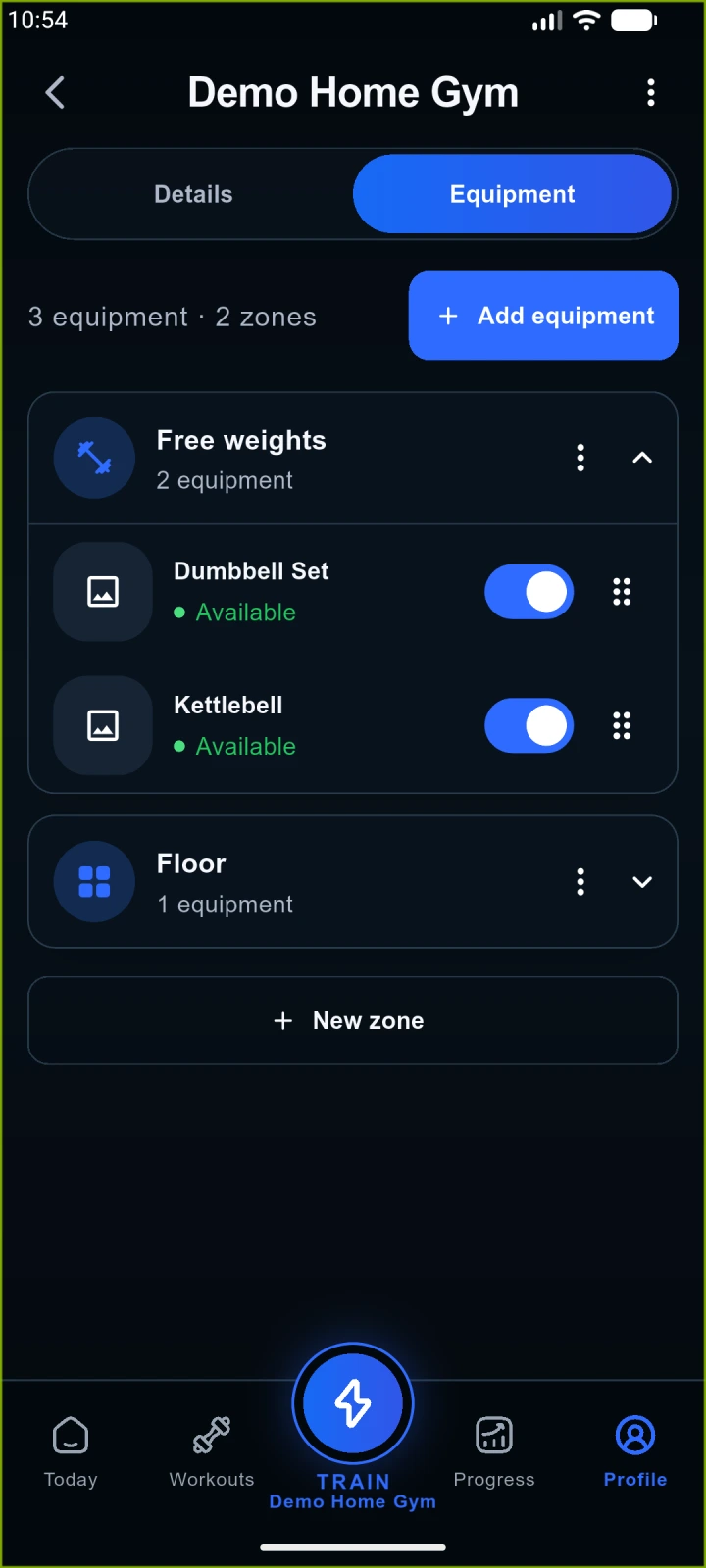
In Profile → Gyms and equipment, select your location. Review equipment and enter available weights, such as 6, 8 and 10 kg dumbbells. Do not include weights that are not physically available. A machine stack can have different increments from dumbbells.
Choose how to plan
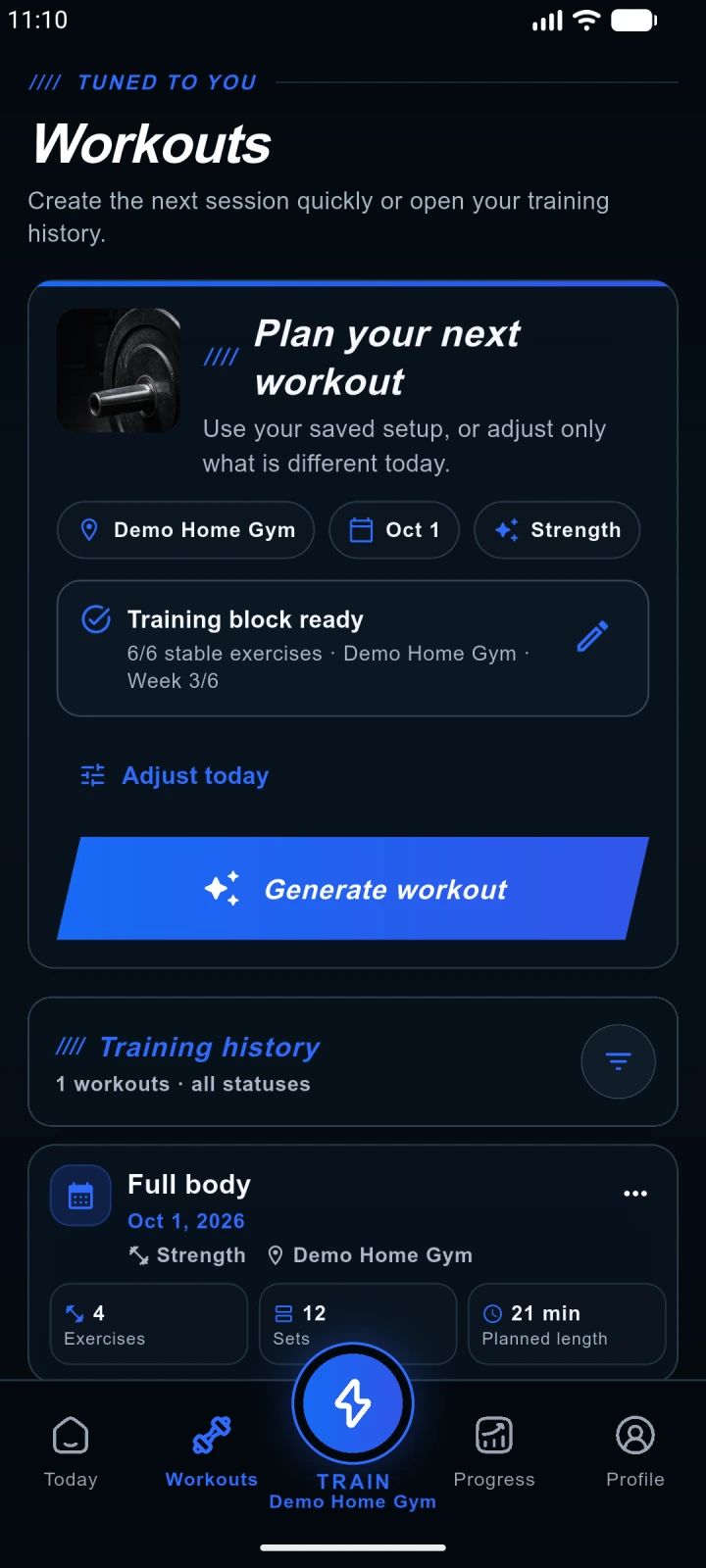
Your starter workout is added at account creation. A new workout or continued six-week program requires Pro. Location-specific program patterns need suitable available exercises; check location readiness and your time budget.
Review, then start
Review exercises, weights, reps and technique instructions. A preview or plan is not a workout log. Start the saved session; the one-time free access applies only to your own starter workout.
Save the actual set
Enter completed weight and reps, then save the set. RIR estimates how many clean reps you had left. With Pro, feedback informs Kora’s next suggestion. Report pain separately; do not record a skipped set as completed.
Use a watch as an optional companion
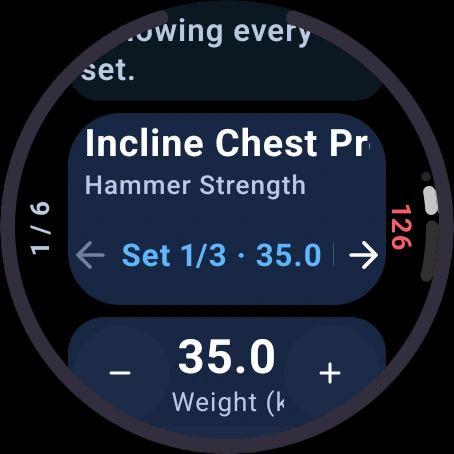
Pair a Wear OS watch with your Android phone, install AnyGear on it and sign in on the phone. Before watch logging, check the connection and current workout values. Save each set once; setup and planning stay on the phone.
Finish and check
Finish explicitly, wait for synchronization and check history. Leaving the screen does not finish the session. The next plan uses saved data, not just preview targets.
From equipment to a program
The articles are in English. Open the user guide for detailed procedures.
Locations and equipment in the user guide